


Update multiple child records at once using Visual Flow

Hola Ohana!
This article is about demonstrating how to update multiple child records using a Visual flow.
For understanding purposes, we will keep our use case very simple and specific.
Use Case:
We would like to update the stage of all child opportunities related to an Account record to a specific value.
So let’s get started!
Step 1: We will start off by creating some flow variables.


Step 2: Next, we will create a screen, using Screen element. This screen element will contain a “Multi-Select Checkboxes” field and a “Dropdown List” field.


Step3: Now, we use a Decision element to check if the user selected has at least one record and the Stage value as well.

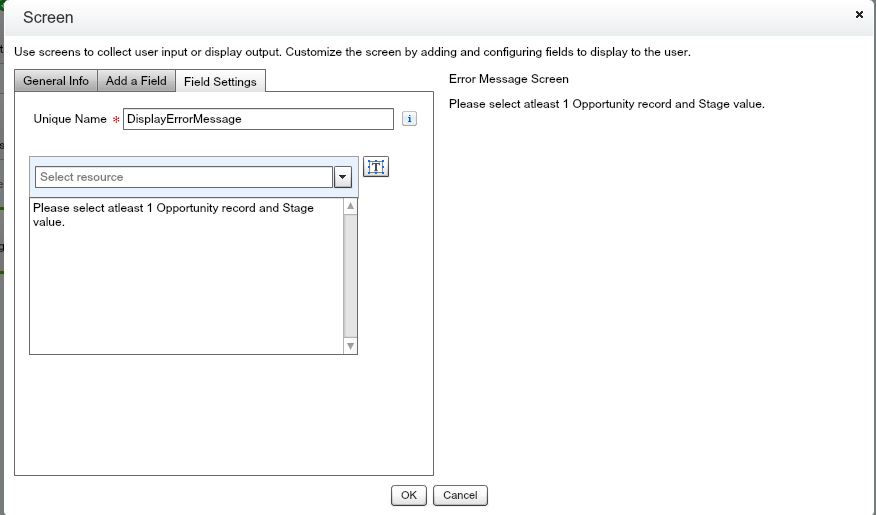
Step 4: Based on the output of decision element: If the output is False, implying user either didn’t select any stage or selected at least one Opportunity record, we display a message using a screen element.
Step 5: If the output of decision element comes out to be true, i.e. user selected at least one record and stage value, we proceed with our flow and query all the child Opportunity records using Fast lookup element. Consequently followed by a Loop element to iterate over the queried records.


Step 6: In our loop, we shall first check, using a Decision element, if the current loop element(Opportunity record) is one of the selected Opportunities or not. If yes, then we assign the stage selected by the user to the stage of loop element using a Assignment element and then add the loop element to the collection variable.


Step 7: After adding the loop element to the collection variable, we update all the records in collection variable using a Fast update element, followed by a success message on a Screen element.


With that, completes our flow. And finally our complete flow looks like:

Save and Activate your flow.
Step 8: Our job isn’t done yet. We need to create a quick action to call our flow.
Setup -> Object Manager -> Account -> Buttons, Links and Actions.
Click on New Action.
Action Type: FlowFlow:
Choose your flow from the dropdown
Give it a suitable label and save it.
Now go to page layouts and add your quick action to the “Salesforce Mobile and Lightning Experience Actions” section and save it.
And voila! We are good to go.
Quick Demo

With this, you can extend your flow not just to update stage but any other field, even multiple, depending upon your business logic.
-Thank you!

Comments