


Salesforce Field Service Lightning – FSL Mobile Flows Part 2 – Replacing Lookups

See Part 1 which discusses some key differences between Screen and Mobile flows.
Embedded Lightning Components and Lightning Component-based elements (outside of Upload File) are not supported in FSL Mobile…yet. Of all the differences between Screen and FSL Mobile flows, this will likely have the greatest impact on how you work with FSL Mobile Flows. Examples of Lightning Component-based elements would be the new(-ish) ‘Dependent Picklist’ or ‘Lookup’ Components.
For advanced Lightning Flow users, you will also have become accustomed to providing Flow solutions with embedded custom Lightning Components, which are also not supported at this time. Not to worry though as there are ways to achieve the same result, even if it’s a bit clunkier today than we could achieve in a Screen Flow.
Let us look at a simple example of replacing a Lookup component in FSL Mobile. For this we need to go ‘old school’ in terms of allowing users a text string input for search, performing that search, and then presenting a Record Choice Set back to the user.
Picture a scenario where an Engineer is trying to order Products to complete a Work Order. We will follow this example in the next few posts and end up with the relatively simple FSL Mobile Flow shown below.

To do this, the engineer first needs to be allowed to search for the Name of a Product and be shown possible selections matching that search.
First we will provide a simple text field for the Engineer to enter search input. **Note FSL app by default offers a barcode scanner and speak to text capabilities that will be helpful in many scenarios.

We then build the Record Choice Set using a query on the Product2 object where the Name includes this text string:

Then we present that Record Choice Set for selection. Make sure to leave the ‘Previous’ option available here so that the user can easily re-search!

Next we assign the record choice made to the SObject variable that we want to create by using the standard Assignment element. This piece of the flow looks simple from a summary view.
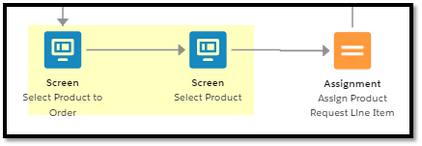
Note that this solution can be extended to include a toggle to let the engineer select what they want to search by, and then branch to the Record Choice Set accordingly based on the desired search criteria. These types of scenarios can get significantly more complicated but in a real-life scenario it will be very common.

In the next part, we’ll take a look at managing differences in formulas!
** Note that Rahul Gupta pointed out in the comments of Post 1 that you also have the ability to launch Salesforce Mobile from FSL Mobile Flows, which opens up the possibility of using Lightning Components there. This may be an acceptable solution especially if users are already using Salesforce Mobile heavily. I have not addressed that here, as the focus is on delivering an FSL Mobile only solution. Find more documentation here. https://help.salesforce.com/articleView?id=mfs_extension.htm&type=5
Hope you find this one useful! See you in the next one! ✌ Thank you for being an awesome reader! Subscribe to this blog for receiving all the latest updates straight to your inbox. 🙂
NOTE: This post is written by Nick Sauer. Click here to know more about this awesome trailblazer!

Comments