


Dynamic Record Sharing/Manual sharing in Lightning using flows

Hi! 😀
In this article, we shall learn how we can share records dynamically without using code(Apex). And no wonder flows come to our rescue again. You can also the same concept to implement the Manual sharing in Lightning.
Before we dive into the details of the flow, we must first understand what happens behind the curtains when we share a record.
For every object in the Salesforce where we can implement record sharing, there is another standard object with the name objectnameShare. So for example, for Account the corresponding object is AccountShare. This is valid for custom objects as well. So the name of the object will look like customObject__Share. This object following information:- Record which is being shared, with whom the record is being shared and the access level.
So, every record shared an entry(record) is added to the sharing object. And that is exactly what we are going to do to achieve our requirement.
Before we begin, let’s discuss our business use case.
Use Case:
Tyson is a Salesforce Administrator at BeyBlade organization. BB organization recently migrated to Lightning, and like everyone, they are also missing the out of the box functionality of manually sharing their records. 😥 Tyson is tasked to figure out a solution to enable his users to share Account records on a button click.
Here is how he did it! 😀
Step 1: We start off by creating a few variables in our flow. -Text & sObject Variables:


-Formula Variables:


-Dynamic Record Choice


Step 2: Add a screen element to the flow with Multi Select checkboxes and the Dynamic record choice as the source. The user selects the users to share the record with.

Step 3: Add a decision element to check if the user has selected at least 1 user.

Step 4: Add a screen element to show a message when the user doesn’t select any user.

Step 5: If the user selects at least 1 user then we use an assignment element to store the list of selected users’ Ids in a text variable.

Step 6: Add a decision element to iterate over each ID in the variable containing the list of the user IDs.

Step 7: If the length is greater than zero then we add two assignment elements as shown:
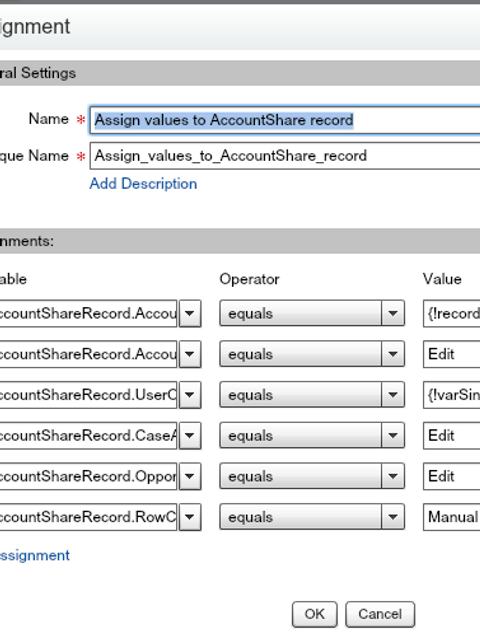

Step 8: When the length of the user IDs variable is less than or equal to zero, we add a Fast Create element to create the AccountShare records.

Step 9: In the end, add a screen element to show a success message.

Final Flow:

Save and activate the flow. Next, create a Quick action on the Account object to call the flow.
Demo:

Thank you! 🙂

Comments