


Attack Direction with StatEasy

I wanted to do attack directions for about two years on StatEasy. I have been quite busy so it was always on the bottom of my list of things to do. However, I did set a couple of days over New Year to figure out how to do it and this is pretty much what I got up to.
Working Out Attack Zones
One of the first decision was how was I going to designate the attack zones. I looked on the internet for ideas and the DataVolley one was pretty good but it would have been difficult to replicate in Excel.

I still liked the idea of having the court divided in 9 equal squares so I ended up using that. Below is the finished numbered zones for attack directions and eventual codes for input. I used volleyball positions 1 to 6 as it was easy to remember. Using number 7 to 9 was an inventive way to fill up the middle squares, an idea I stole from DataVolley. For the squares outside the court, I added a zero to the number of their neighbouring square. Zone “50” and “10” could have been three separate squares but I decided to lump it together as it made the statting a lot easier. I also added other outcomes that involved the oppositional block or deflection.

*** Update 30 January 2021 | Had I used DataVolley previously, this would have been a lot easier. All the areas that are out of bounds, I would have keep the nearest zone, e.g. zone 6 that is out is still zone 6. For attacks that is rebounded and block killed, I may have added another code. This would have made the calculations a lot simpler too (see later) ***
Data Input
It would be nice if I had something like SportsCode where I can build my code window to replicate a volleyball court. But I am using StatEasy and it has a keystroke data entry methid. I had a couple of ideas of how to input the data but I ended it with this one:
The (stat) is the shortcut key for attack directions. I could have used one stat (e.g. “td”) for all attack directions but I also wanted to know the outcome. I could have added another data point (e.g. data 2) but I thought it would complicate things in the stat report. So I settled on creating three separate stats: “kd” for Kill Attack Direction, “td” for Continuation Attack Direction and “edc” for Error Attack Direction (“ed” shortcut was already in use so I had to add the “c”).
The (player) data point indicates the player involved. The (data 1) is the data point that contains the actual attack directions. It should be three numbers where the first number is the origin zone of the attack and the last two numbers is the destination/ outcome zone of the attack. It may have been easier to have two data points, the first for origin zone and the second for destination/ outcome zone but I did not know how to get the information out in the stat report (although I could have asked StatEasy people themselves). I also felt it would make statting slightly quicker if I didn’t need to press spacebar to separate the two data points (although it quick to press spacebar, it’ll save time if you have a thousand or so attack directions.
So an example of inputting an stat is:
It means it was a kill (“kd”) by player wearing shirt number #10 from zone 4 (outside) crosscourt to zone 05.
Stat Report
It is easy to create the stat but how am I going to get the information out in the stat report? The stat report is simply a table of calculated equations. For example, if I wanted to know the total number of kills, the calculation is simply “” where (k) is the shortcut key for kills. If I wanted to calculate a hitting percentage then the calculation is this:
where (e) is attack error and (at) is an attack attempt continuation. So how do we calculate attack directions where an extra data point is involved? Well, it is not too complex but it is certainly laborious to write out. For example, to calculate a hitting percentage when hitting through 2, I have to use this equation:
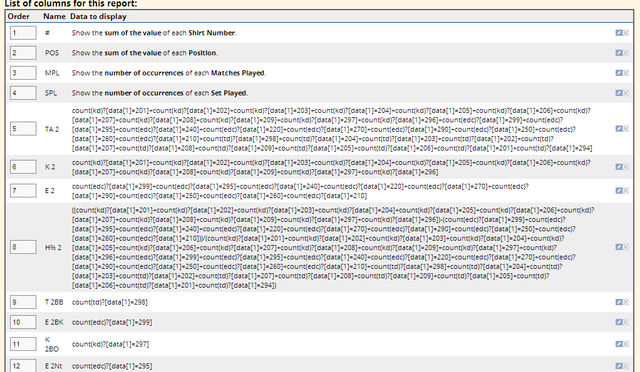
It is so long because I have to write every single possibility when hitting through zone 2. This calculation would have been easier if I separated the two attack zones but I’ve already gone too far on this course. The finished stat report was extremely long that contained 352 columns of data. Below is what the start of the attack direction stat report equations look like.
Data Export into Excel
Having 352 columns does not visualise the data properly. Below is the what I currently have to present the attack direction data. Obviously, there is a lot of behind the scenes Excel work that went into it but the end product is what matters here. It is also only in its infancy stage. It can seen already that is does not look great and obvious patterns cannot be clearly seen especially when compared to the DataVolley versions below. It also has the disadvantage that attack directions cannot all be shown on one chart. In my version, six charts are need for all origin hitting zones (2-4, 7-9). If additional conditions are needed, e.g. attack direction for each rotation, then six charts are needed for each rotation. This gives out 36 total charts to be looked at by the coach which is not ideal. We won’t talk about if a coach wants to see individual player’s attack charts or after reception/ transition or after perfect reception/ positive reception.


I do feel one advantage my chart does over DataVolley is when you want to know how a team/ player hits over several matches or over the course of the season as a better indication of tendency. It can already be seen in the above DataVolley examples of how too many attack attempts can cloud any patterns or tendencies. The are examples are taken from one match only and I cannot imagine if several match data are used how overcrowded it would look.
Conclusion
I haven’t taken it any further because a lot more work is needed to make it much more better. Also, we have another coach that does attack directions on DataVolley Click and Scout version so my version is really not needed at the moment. I am glad that I did it though because it was a great learning experience and if I need to use it at a later date then at least I have something to build on.

Comments